Showing posts with label SSIS. Show all posts

Thursday, October 20, 2011

Create new Excel Sheet when Source Records Exceed 65K using SSIS

OBJECTIVE : Creation of Multiple Excel Sheets in a Single Excel File when the Source record exceeds more then 65K.
SUMMARY   : An Excel file "MyExcel" should be dynamically created. This Excel File "MyExcel" should have multiple Excel Sheets like "MyExcel1", "MyExcel2", "MyExcel3" dynamically created in it depending on the count of records in the source table. The source records are transferred to the destination Excel sheets in set of 65K records. Every Excel sheet must contain a max of 65K records from the source.


Coding Information :
1 - Variable Creation :
    a) ExcelFileName : Specifies the name of the Excel File
       Default value = Excel65K
    
    b) ExcelFilePath : Specifies the full path of the Excel File
       Default value = L:\practice\ssis\ExcelSheets\testexcel\

    c) RowStartCount : Specifies the Starting count of the 
                       records to be transferred to the Excel                  
                       Destination 
       Default value = 0
    
    d) RowEndCount   : Specifies the End count of the records to   
                       be transferred to the Excel Destination    
       Default value = 0
   
    e) RowSource     : Count of records in the source table
       Default value = 0

    f) RowLimit      : Maximum count of records that need to be 
                       transferred to a single Excel Sheet 
       Default value = 50000

    g) ExcelDestSheetName : Specifies the name of the Excel sheet    
                            to which the data from the source 
                            will be transferred. 
       Default value = Excel65K0
       Evaluate As expression = TRUE

* For every set of records (equivalent to RowLimit i.e, 50000),  a new ExcelDestSheetName will be generated dynamically and will be used in the Excel Destination Data flow destination.

    h) QueryDFTSource : Specifies the dynamic query that selects 
                        the required set of records from the  
                        table. Here the set contains  50000 
                        records in every loop, which is then         
                        transferred to a new Excel sheet.
       Evaluate As expression = TRUE

       Query : "SELECT Column1 
                FROM ExcelOutflow 
       WHERE (Column1 >=" + (DT_WSTR, 10) @[User::RowStartCount]                      + " and Column1 <" + (DT_WSTR, 10) (@[User::RowEndCount] + @[User::RowLimit]) + ")"

       Example : SELECT Column1 
                 FROM ExcelOutflow 
                 WHERE (Column1 >=0 and Column1 <50000)
       
    i) QueryExcelSheetCreation : Contains the query to create the excel sheets dynamically in the excel file.
       Evaluate As Expression = TRUE.

       Query : "CREATE TABLE `"+ @[User::ExcelFileName]  +                (DT_WSTR, 25)  @[User::RowStartCount]  + "` ( `Column1` Decimal(5,0) )"

       Example = CREATE TABLE `Excel65K0` 
                   ( `Column1` Decimal(5,0) )

2- Connection Managers :
          a) Excel connection Manager
             ::  @[User::ExcelFilePath] + @[User::ExcelFileName] + ".xls"
             ::  Set the "ExcelFilePath" property of the Excel  
             connection manager to above expression
          b) DataBase Connection Manager 
          c) File Connection Manager

* The Excel file present in the ExcelFileName variable has to be physically present initially so that in the DFT the mapping between source columns can be done with the destination columns. Else the Excel Destination will give error during the creation of the package.

3- Components Description :
The below image shows the Control Flow of the SSIS package.

(Image-1)

File System Task "delete Pre-Existing Excel File" deletes the excel file with the same name if it is existing in the same location.

Execute SQL Task "Get Source Record Count" gets the count of records present in the source table. 

For Loop Container "Loop for all records set..."  loops for n number of times till all the records from the source table is transferred to the destination excel sheet.

(Image-2)

Here only the Evaluate Expression is specified.
The RowEndCount (default=0) is incremented with the value of RowLimit (default=50000) for every loop. So if the RowSource value is 200001, then the loop will continue for 5 times.

* The Assign Expression is specified in the Script Task present at the end of the For Loop.

(Image-3)

The Execute SQL Task "Create Excel Sheet in the Excel File" creates the excel sheets in the excel file.
The Connection Type should be EXCEL.
The excel sheet creation is done through a variable whose value changes dynamically with the For Loop execution.

* Refer above "Variables" part to know about its property.
(Image-4)

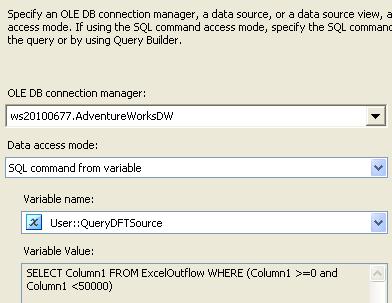
In the Data Flow Task "Transfer set of Records....." the OLEDB Source retrieves the data from SQL Server Table. 
The command is passed to the source as a variable.

* Refer above "Variables" part to know about its property.

(Image-5)

In the Data Flow Task "Transfer set of Records....." the Excel Destination is configured with the variable "ExcelDestSheetName". The value of these variable changes for every loop of the For Loop Container. 
It is very important to change the name since every new set of records need to be transferred to a new excel sheet which has been created dynamically in the Execute SQL Task.

* Refer above "Variables" part to know about its property.

Tuesday, October 18, 2011

Create Multiple Excel Sheets in One Excel File in SSIS

OBJECTIVE : Creation of Multiple Excel Sheets in a Single Excel File
SUMMARY   : An Excel file "MyExcel" should be dynamically created. This Excel File "MyExcel" should have multiple Excel Sheets like "MyExcel1", "MyExcel2", "MyExcel3" dynamically created in it. The same data from the source table should be sent to all the Excel Sheets.


Coding Information :
1 - Variable Creation :
    a) StartCount : Specifies starting count for the Excelsheets,                                  
       Default value = 1
    b) EndCount : Specifies the ending count for the Excelsheets,      
       Default value = 3
    c) FilePath : Specifies the Path where the Excel File is   present, 
       Default value = L:\practice\ssis\ExcelSheets\testexcel\
    d) FileName : Specifies the Name of the Excel File,    
       Default value = MyExcel
    e) QueryExcelSheetCreation : Contains the query to create the excel sheets dynamically.
       It has "Evaluate As Expression" property set to TRUE.
       Default value = "CREATE TABLE `"+@[User::FileName] +                  
                      (DT_WSTR, 25) @[User::StartCount]  
                      + "` 
                      (
                      `Year` Decimal(5,0),
                      `Month` LongText,
                      `Balance` Decimal(10,0)
                      )"
         Example = CREATE TABLE `MyExcel1` 
                       (
                       `Year` Decimal(5,0),
                       `Month` LongText,
                       `Balance` Decimal(10,0)
                       )


2- Connection Managers :
          a) Excel connection Manager
             ::  @[User::FilePath] +  @[User::FileName] + ".xls"
             ::  Set the "ExcelFilePath" property of the Excel  
                 connection manager to above expression
          b) DataBase Connection Manager 
          c) File Connection Manager
* The Excel file present in the FileName variable has to be physically present initially so that in the DFT the mapping between source columns can be done with the destination columns. Else the Excel Destination will give error during the creation of the package.


3- Components Description :


The File System Task "Delete Pre-Existing File" deletes the Excel file (here MyExcel) if it is existing in the specified location.
  
           
The ForLoop "iterate for multiple sheets" iterates for EndCount times. If the value of EndCount is 5 then the for loop iterate 5 times and creates 5 Excel Sheets in the same Excel File.


The Execute Sql task "Create Excel sheet in existing Excel File" creates the Excel Sheets in the Excel File during run-time.

* The ConnectionType = EXCEL which means the object operated upon is an Excel object 
* The command/query to create the excel sheets are passed through variable "QueryExcelSheetCreation"


The value in this variable keeps changing with the iteration of the For loop. So every time the Execute Sql Task is executed a new Excel Sheet is created in the corresponding Excel File. For example MyExcel1, MyExcel2, MyExcel3,...........
The variable "QueryExcelSheetCreation" has Evaluate As Expression property set to TRUE which enables its value to change with the iteration of For Loop.


** Note :
The Excel Connection Manager is used to create an Excel File with the specified name. (here MyExcel)
The Execute Sql Task configured using these Excel Connection Manager creates the specific Excel Sheets in the same Excel File.
(here MyExcel1, MyExcel2, MyExcel3)


At Run-Time :
- "Delete Preexisting File" File System Task deletes any existing Excel file with same name "MyExcel"
- "Iterate For Multiple Sheets" For Loop iterates for n number of times where n = (EndCount-StartCount)+1
- "Create Excel sheet in existing Excel File" Execute Sql task creates an Excel Sheet after creating the Excel File to which the "Excel connection Manager" is pointing to. 
  The Excel File is created with name depending upon the value of the variable FileName.
- "Transfer records To new Sheet" Data Flow Task transfers the source records to the dynamically generated Excel sheets.

Wednesday, September 21, 2011

Transfer data from Excel file to Sql Table through Sql Query and viceversa

Source & Destination Info:
1) Source Excel Sheet
    Name - “Sheet1” in “excel2sqltable.xls”
    Contains 2 columns namely Column1 and Column2
    It contains data as  1, Prakash
                 2, Bharath
                 3, Sastry

2) Destination Sql Server Table
    Name - “excel2sqltable”
    Contains 2 columns namely Column1 and Column2


Query to select the records from the excel sheet:
SELECT Column1,Column2
FROM
OPENROWSET('Microsoft.Jet.OLEDB.4.0',
'Excel8.0;Database=L:\practice\excel2sqltable.xls', [Sheet1$])


Query to select and insert the records from excel to table:
INSERT INTO dbo.excel2sqltable
(
Column1,
Column2
)
SELECT Column1,Column2
FROM
OPENROWSET('Microsoft.Jet.OLEDB.4.0',
'Excel 8.0;Database=L:\practice\excel2sqltable.xls', [Sheet1$])


** Note:
On executing the above query you may get Error :
“Msg 15281, Level 16, State 1, Line 1
SQL Server blocked access to STATEMENT 'OpenRowset/OpenDatasource' of component 'Ad Hoc Distributed Queries' because this component is turned off as part of the security configuration for this server. A system administrator can enable the use of 'Ad Hoc Distributed Queries' by using sp_configure. For more information about enabling 'Ad Hoc Distributed Queries', see "Surface Area Configuration" in SQL Server Books Online.”

To enable the property run the below query :
EXEC sp_configure 'show advanced options', 1;
RECONFIGURE;
EXEC sp_configure 'Ad Hoc Distributed Queries', 1;
RECONFIGURE;

It will enable the property which allows to modify  advanced options.
Then it will enable the execution of the ‘d Hoc Distributed Queries’.


Transfer data sql server to excel sheet

Query to transfer the records from table to excel:
INSERT INTO
OPENROWSET('Microsoft.Jet.OLEDB.4.0','Excel 8.0;Database=L:\practice\excel2sqltable.xls;',
'SELECT * FROM [Sheet1$]')
SELECT * FROM dbo.excel2sqltable


Tuesday, September 20, 2011

Scenarios to understand Transaction Options in SSIS

Required:
Indicates that the container starts a transaction, unless one is already started by its parent container.
If a transaction already exists, the container joins the transaction.

Supported:
Indicates that the container does not start a transaction, but joins any transaction started by its parent container.
If no transaction is started by its parent container, it is not bound by any transaction.

NotSupported:
Indicates that the container does not start a transaction or join an existing transaction.
A transaction started by a parent container does not affect child containers that have been configured to not support transactions.


Practical Example info:

The package contains a FOREACH LOOP CONTAINER.
It iterates through the files in the folder and the complete file name with the path is stored in the variable “var_Filename”.

The FOREACH LOOP CONTAINER contains a DATA FLOW TASK.
It has one FLAT FILE SOURCE and one OLEDB DESTINATION.
FLAT FILE SOURCE connection string is configured with the variable “var_Filename”.


So in every loop of the Foreachloop container the FLAT FILE SOURCE points to a new file in the folder.

It iterates through 3 “.txt” files present in a folder.
Files are ff1_TPinForeach.txt, ff2_TPinForeach.txt and ff3_TPinForeach.txt.

File “ff1_TPinForeach.txt”:
Column1
1
2
3

File “ff2_TPinForeach.txt”:
Column1
4
5
6

File “ff3_TPinForeach.txt”:
Column1
7
8
A

The data from these files are transferred to the table “TPinForeach” which contains only one column “Column1” of data type NUMERIC.

** The last row of File “ff3_TPinForeach.txt” has invalid record so as to trigger the failure of package.


Scenario 1:

Transaction Option of FOREACH LOOP CONTAINER = Supported
Transaction Option of DATA FLOW TASK = Supported

On executing the package,
-       Package fails
-       The table contains 8 records from 1-8

Reason:
Since there was no component having Transaction Option = REQUIRED, so no transaction was started at any point during the package execution.

As a result NO Rollback happened while the data was transferred from the files to the table.

Thus the table contains 8 records as the failure happened in the 9th record.


Scenario 2:

Transaction Option of FOREACH LOOP CONTAINER = Supported
Transaction Option of DATA FLOW TASK = Required

On executing the package,
-       Package fails
-       The table contains 6 records from 1-6

Reason:
Since the Transaction Option = REQUIRED for DATA FLOW TASK, so a new transaction was started when the execution of DFT started. The transaction terminated once the execution of the same DFT was finished.

While transferring data from the file “ff3_TPinForeach.txt” into the table, the DFT failed.
Since it was part of a transaction, the data transferred in that transaction is Rolled Back.

Thus the table contains 6 records and not the 7th and 8th record. These 7th and 8th record were part of the transaction which contained Wrong 9th record. As a Rollback functionality the 7th and 8th were rolled back.

Scenario 3:

Transaction Option of FOREACH LOOP CONTAINER = Required
Transaction Option of DATA FLOW TASK = Supported

On executing the package,
-       Package fails
-       The table contains 0 records

Reason:
Since the Transaction Option = REQUIRED for FOREACH LOOP CONTAINER, so a new transaction was started when the execution of FOREACH LOOP CONTAINER started.
The DATA FLOW TASK has Transaction Option = Supported. So it joined the above transaction and became part of the same transaction.

Thus when the FOREACH LOOP CONTAINER failed because of the error 9th record, the transaction started by the FOREACH LOOP CONTAINER Rolled back. Since the DFT were part of the same transaction they rolled back completely from the beginning i.e. from record 1.


Scenario 4:

Transaction Option of FOREACH LOOP CONTAINER = Required
Transaction Option of DATA FLOW TASK = Required

On executing the package,
-       Package fails
-       The table contains 0 records

Reason:
Same as Scenario 3


** Very high level - http://msdn.microsoft.com/en-us/library/ms141083.aspx